01
Switch to Undetectable and start Cluegent
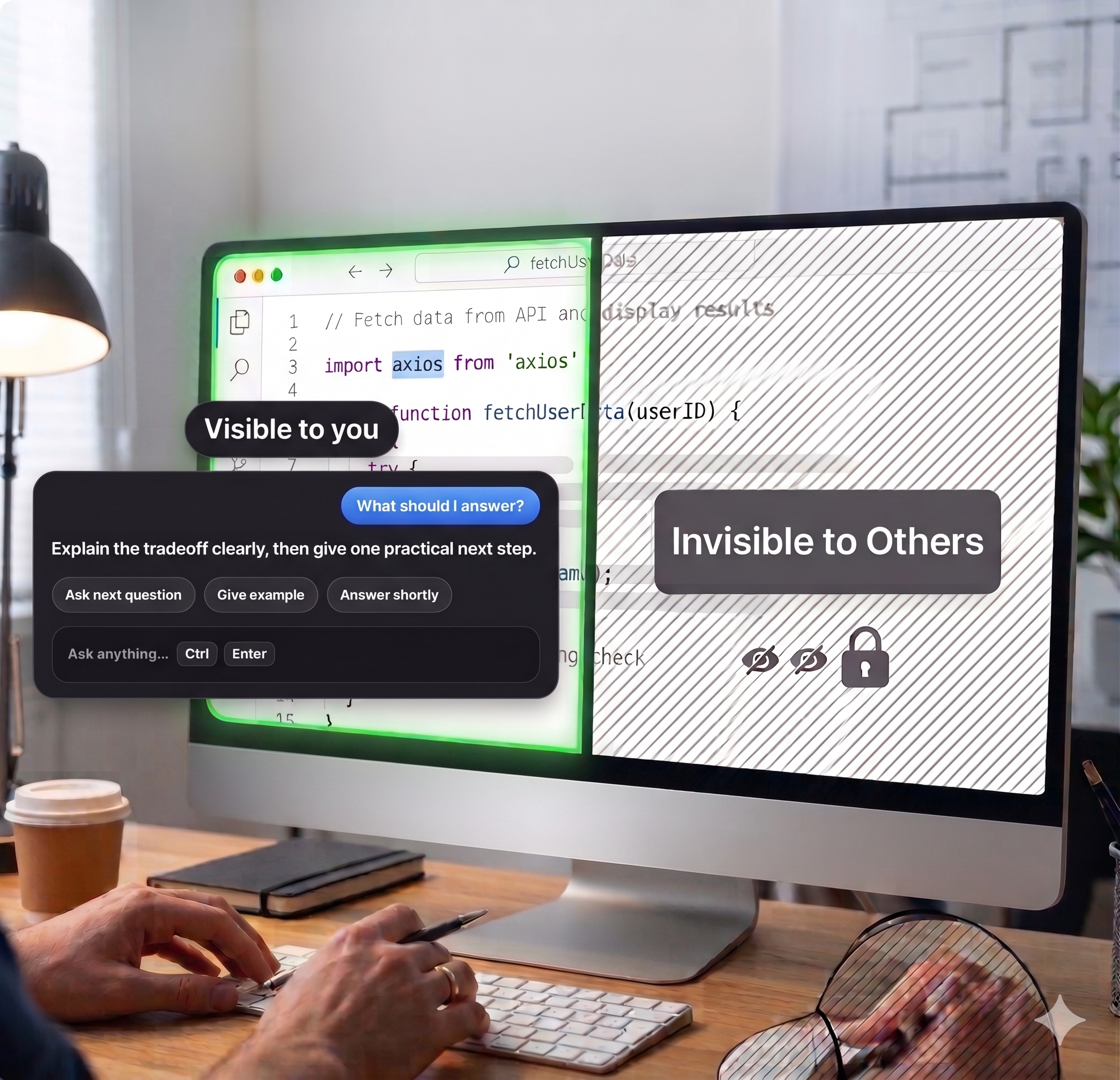
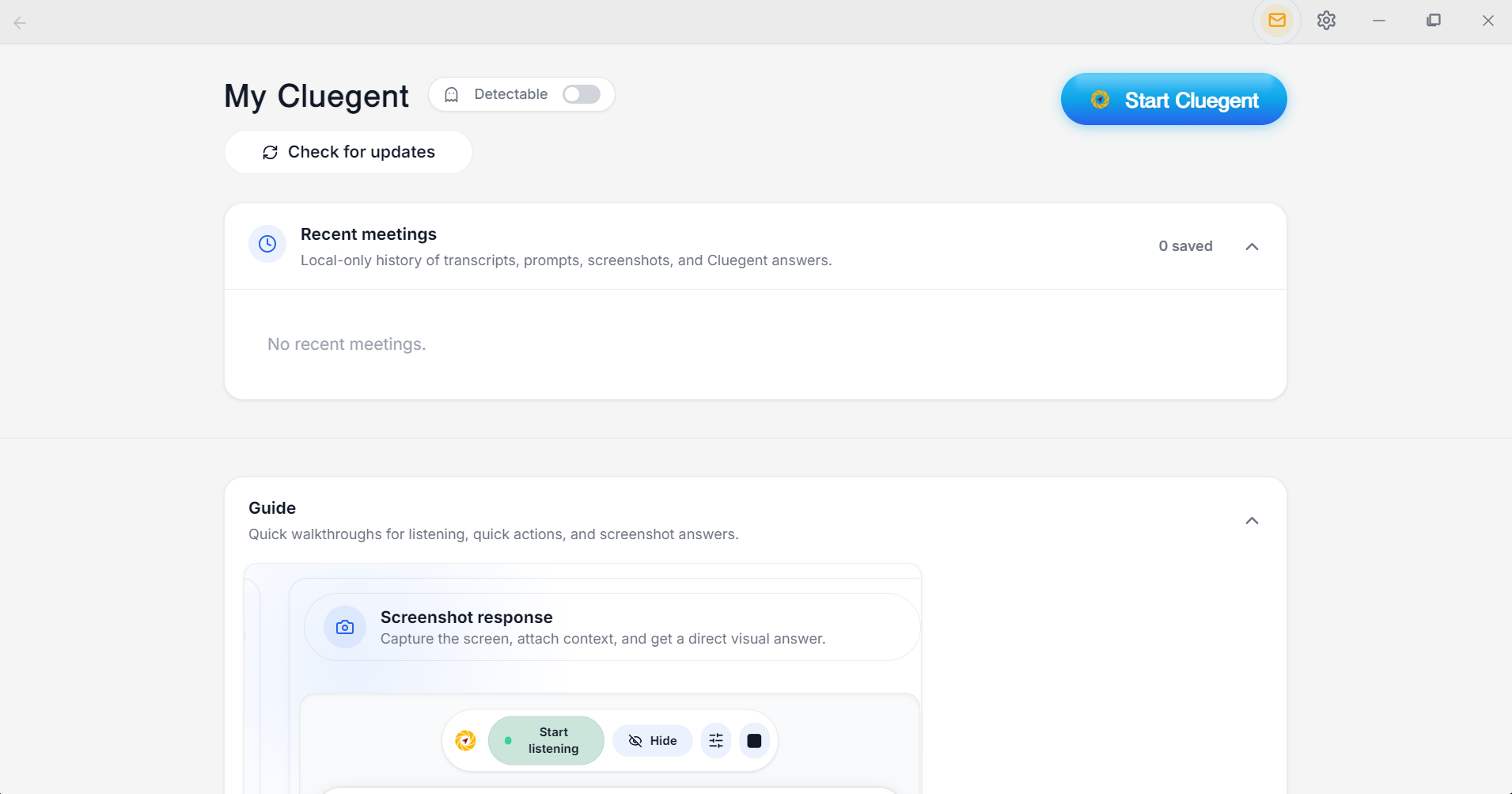
Click the Detectable toggle to enable private overlay mode, then click Start Cluegent.
 Cluegent
Cluegent is an AI copilot for interviews that listens live,provides instant answers,coding solutions and helps you answer every question with confidence.
Get for Windows
Click the Detectable toggle to enable private overlay mode, then click Start Cluegent.
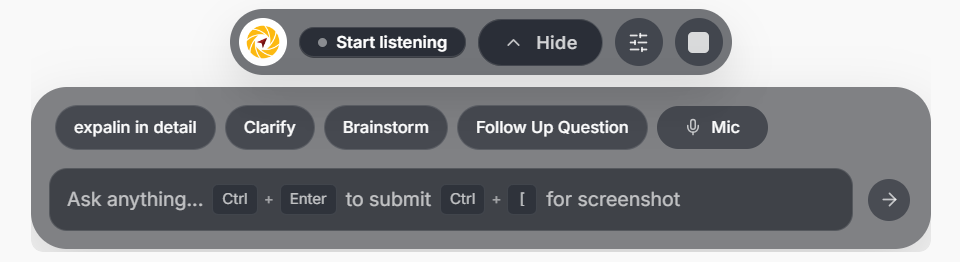
The floating bar can be positioned wherever it is comfortable while you continue using other apps.
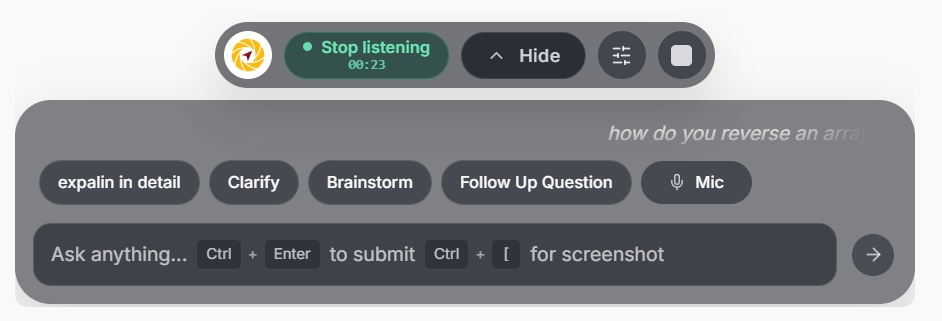
Click Start listening. Cluegent shows a rolling transcript as the conversation happens.
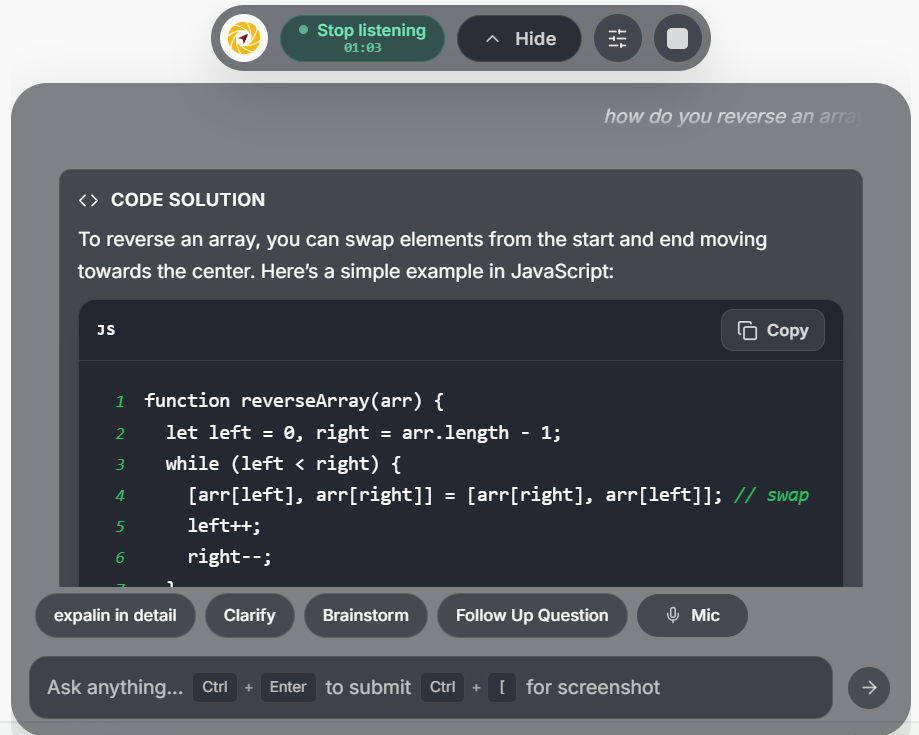
Press Ctrl + Enter to get an AI response based on the transcript.
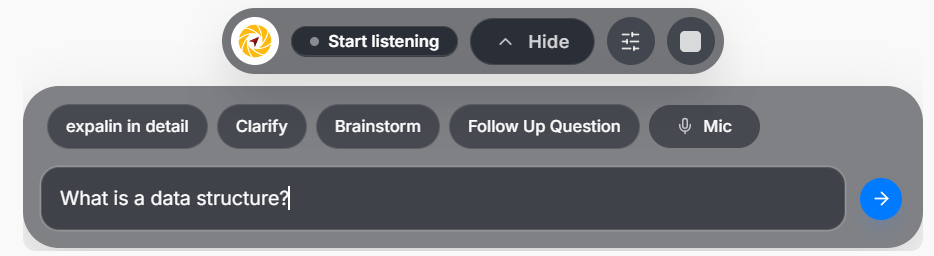
Type your question directly in the input box, then submit with the arrow or Ctrl + Enter.
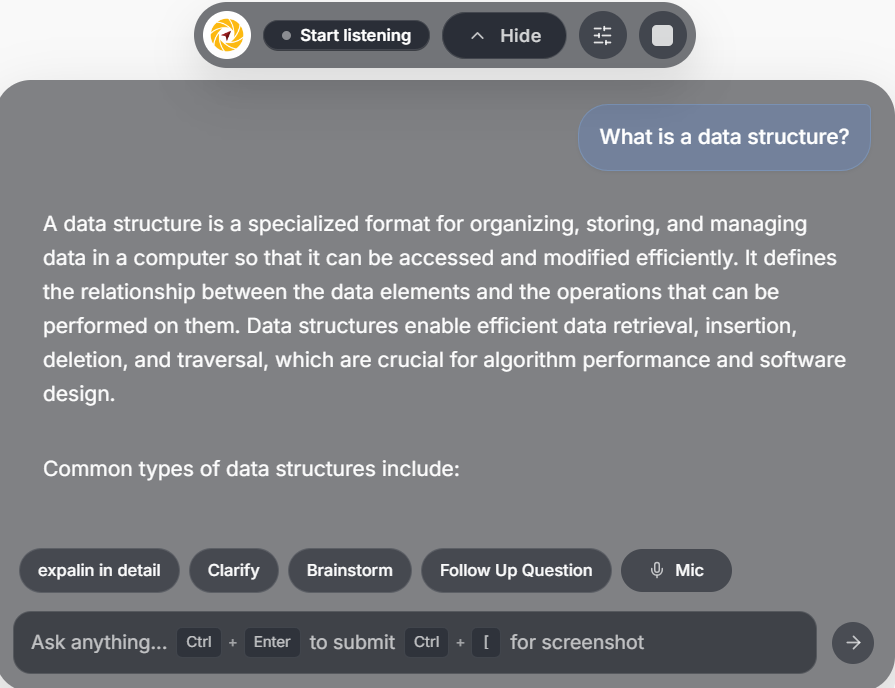
The response appears inside the same overlay, so you do not have to leave your workflow.
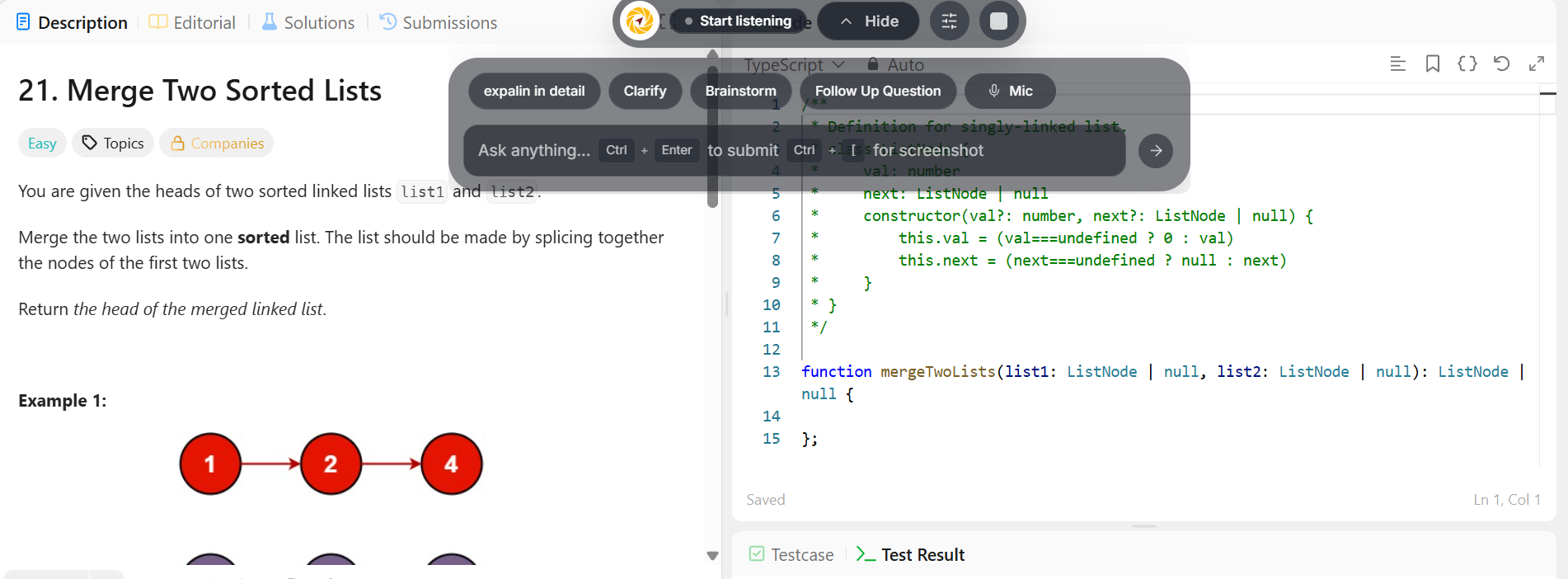
Use Ctrl + [ to attach the visible screen when you need help with code or visual context.
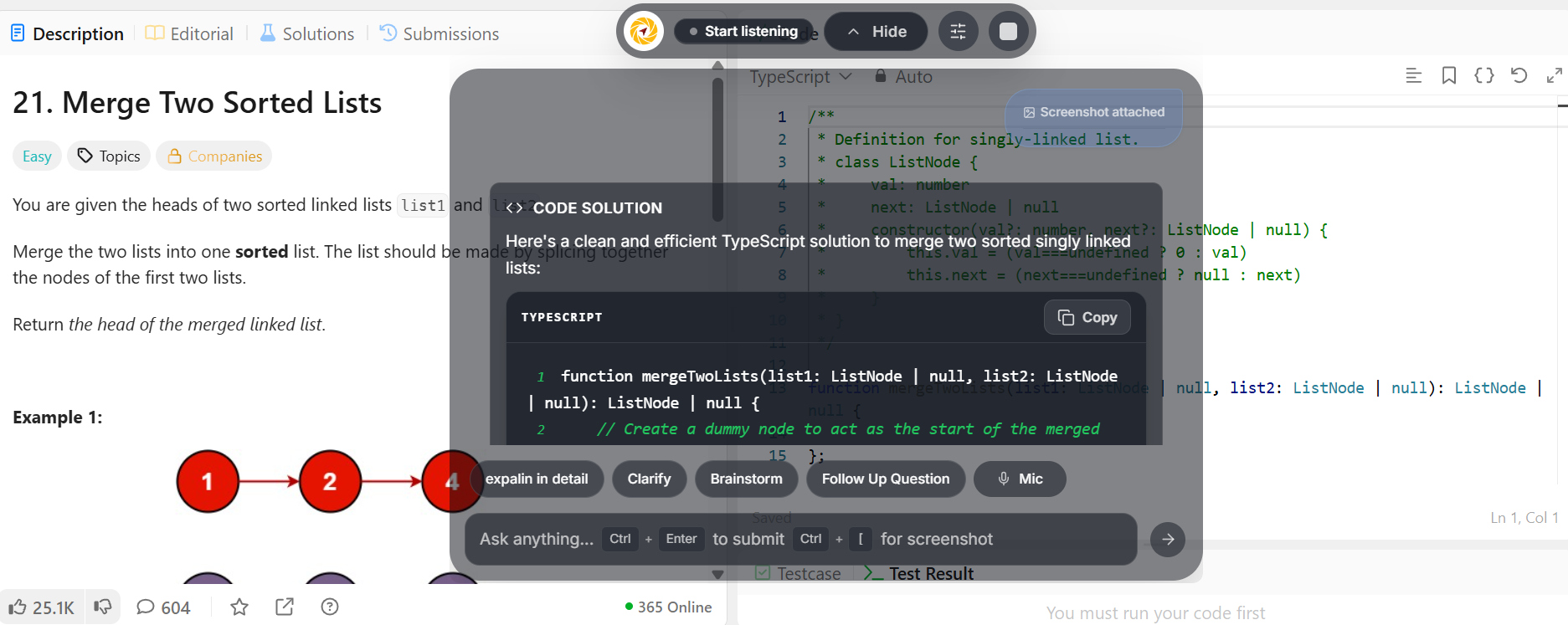
Cluegent reads the screenshot, explains the approach, and gives a practical solution.
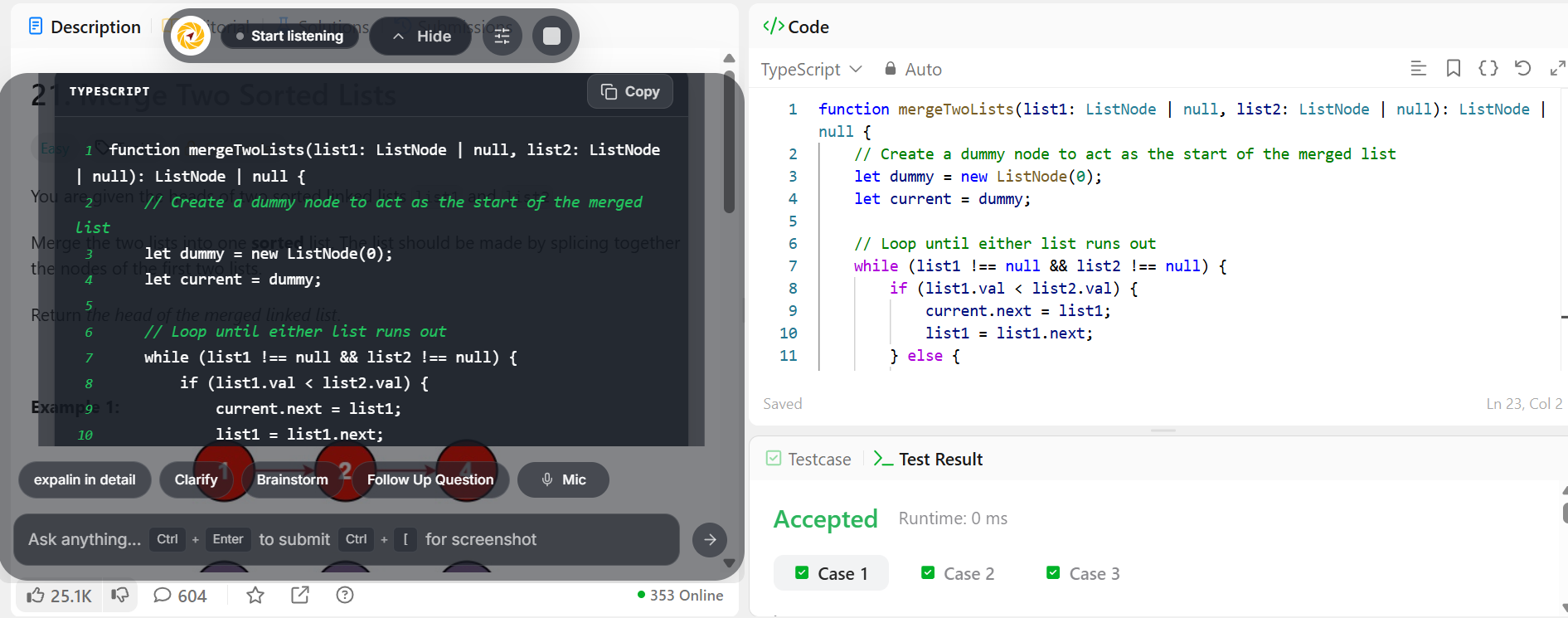
Use the answer in your editor, keep the assistant movable, and continue without breaking focus.
Fast answers, clear notes, and context that follows the conversation.
Start listening, use quick actions, and submit only when you want Cluegent to answer.
Capture a screen, attach it, and get a direct answer for visible questions, code, and errors.
Click the Detectable toggle to enable private overlay mode, then click Start Cluegent.
The floating bar can be positioned wherever it is comfortable while you continue using other apps.
Click Start listening. Cluegent shows a rolling transcript as the conversation happens.
Press Ctrl + Enter to get an AI response based on the transcript.
Type your question directly in the input box, then submit with the arrow or Ctrl + Enter.
The response appears inside the same overlay, so you do not have to leave your workflow.
Use Ctrl + [ to attach the visible screen when you need help with code or visual context.
Cluegent reads the screenshot, explains the approach, and gives a practical solution.
Use the answer in your editor, keep the assistant movable, and continue without breaking focus.
fully private Cluegent stays in your local desktop workflow and gives you control over listening, screenshots, and AI requests.
The simplest path from live conversation to useful memory.
Open Cluegent before your meeting starts and keep the private overlay ready on your desktop.
Stop the session when the meeting ends so Cluegent closes the loop and saves the conversation flow.
Review the saved transcript, prompts, screenshots, and Cluegent answers later from Recent Meetings.
Start listening when the meeting matters, tune how Cluegent answers, and keep your best prompts one click away.
Click Start listening and Cluegent begins showing the rolling transcript in your private overlay. Turn listening off whenever you do not need audio context.
Set separate behavior for Listening response, Typed prompt Response, and Screenshot response in the Customize settings.
Add, edit, or remove quick prompt buttons like Give example or Answer shortly, then ask Cluegent using the current transcript, typed prompt, or screenshot context.
Cluegent is a desktop AI meeting assistant that listens when you ask it to, keeps rolling context, and gives real-time answers through a private overlay.
No. Cluegent runs as a desktop app. It does not appear as a meeting participant or install a browser extension into the call.
It is designed for desktop calls and screen workflows, including Google Meet, Zoom, Microsoft Teams, Slack Huddles, browser tabs, coding editors, and documents.
Cluegent is built on privacy. Recent meeting history and saved local context stay on your machine, while active transcription, prompt, and screenshot requests are processed only when you use those features.
Yes. Our support team is available to help you get the most out of your AI meeting assistant. You can reach us at admincluegent@gmail.com.
Try Cluegent on your next meeting and keep the answer one shortcut away.
Get Cluegent