


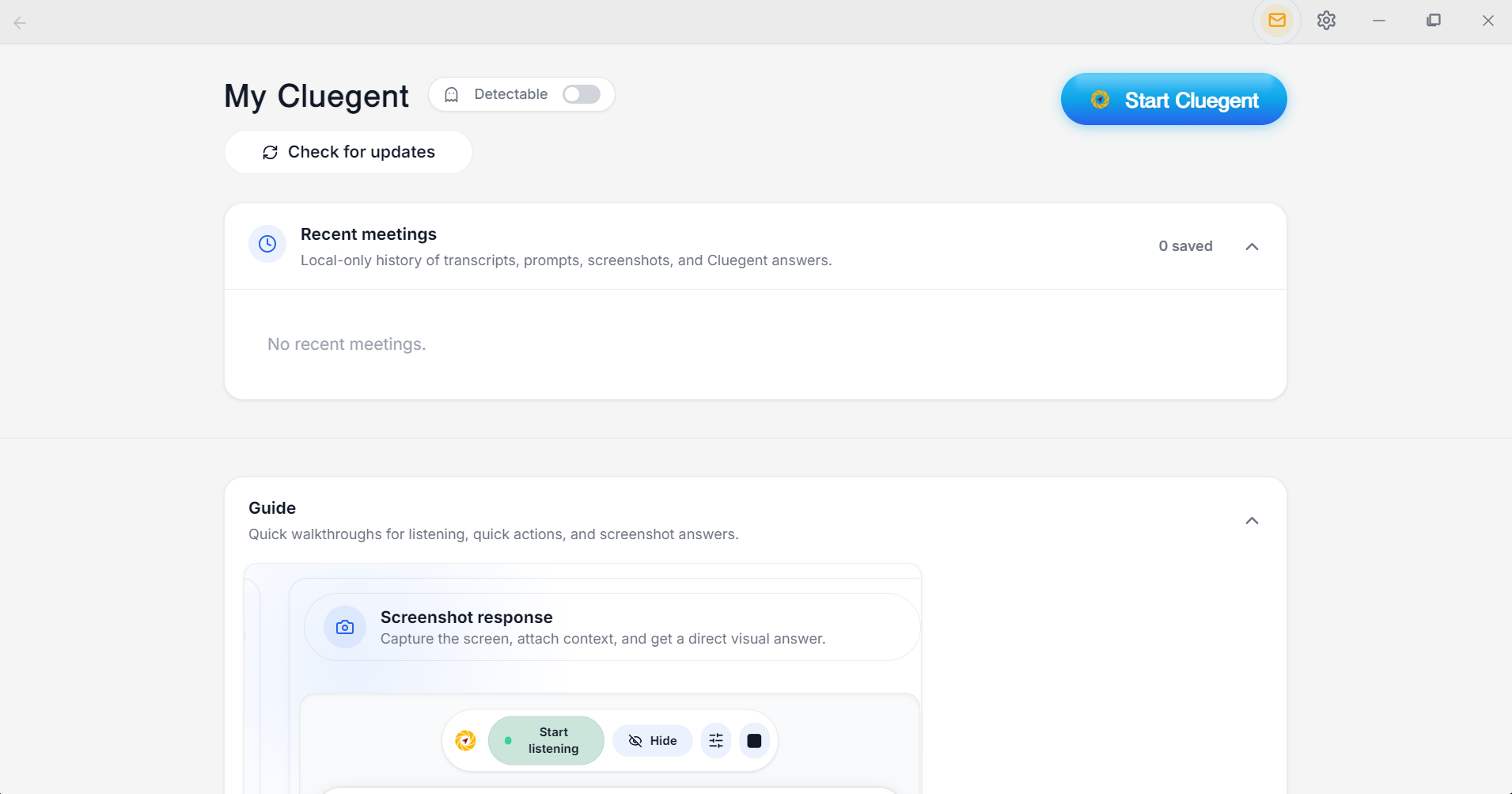
01
Switch to Undetectable and start Cluegent
Click the Detectable toggle to enable private overlay mode, then click Start Cluegent.
 Cluegent
Free AI interview assistant
Cluegent gives real-time interview answers, coding help, screenshot-aware context, and meeting support from a private Windows and macOS desktop overlay for Zoom, Meet, Teams, and technical calls.
Used by 4,000+ people
Click the Detectable toggle to enable private overlay mode, then click Start Cluegent.
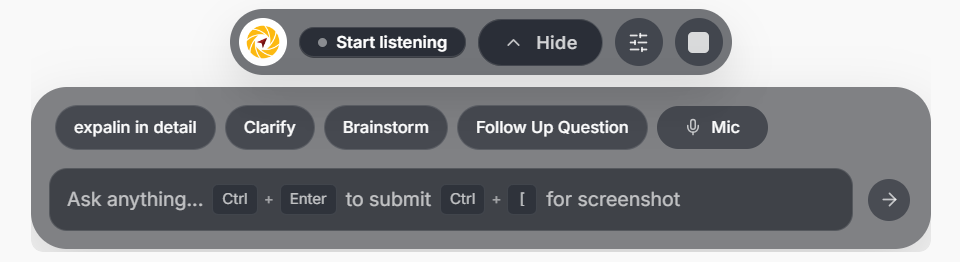
The floating bar can be positioned wherever it is comfortable while you continue using other apps.
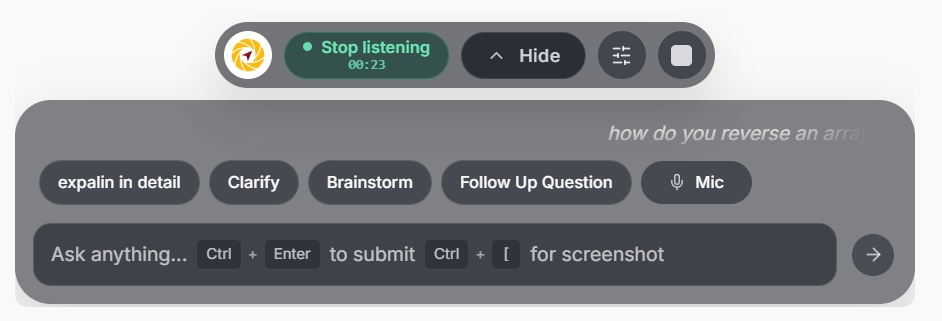
Click Start listening. Cluegent shows a rolling transcript as the conversation happens.
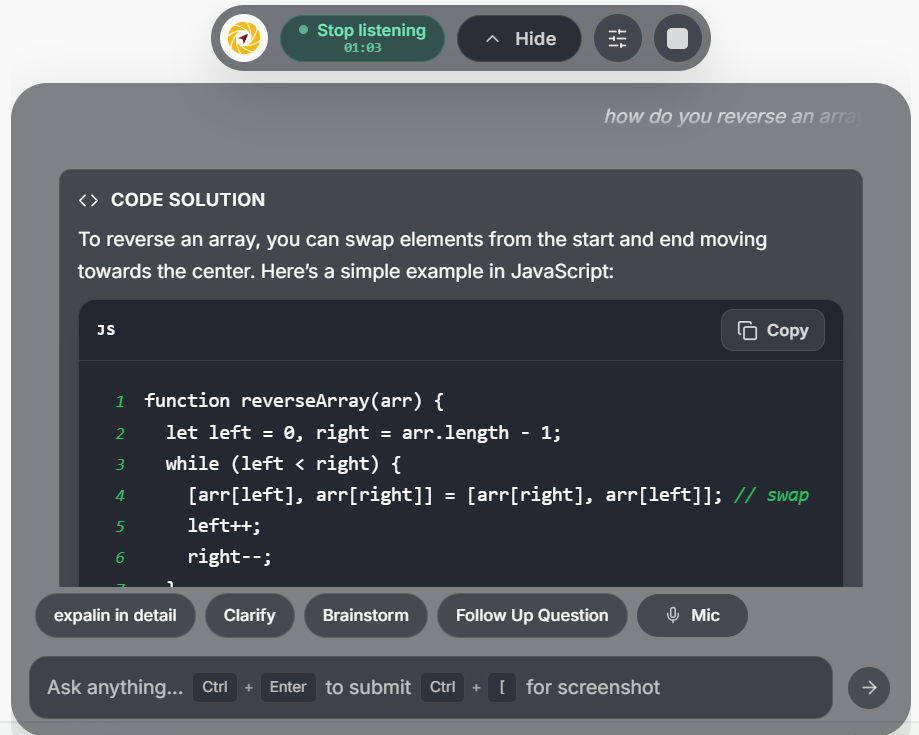
Press Ctrl + Enter to get an AI response based on the transcript.
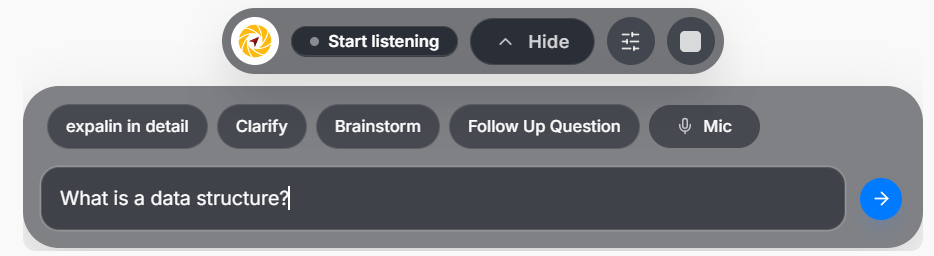
Type your question directly in the input box, then submit with the arrow or Ctrl + Enter.
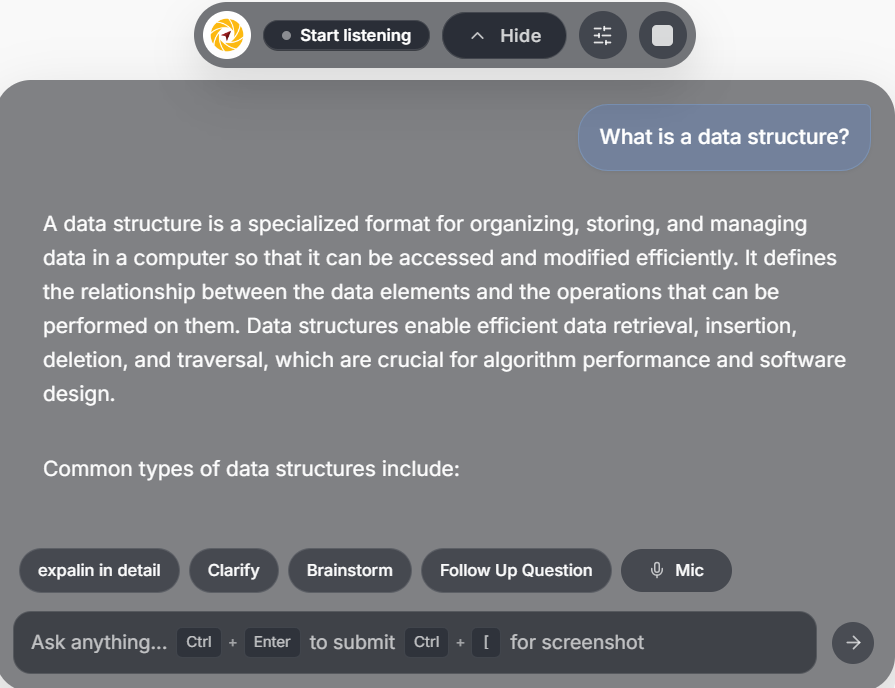
The response appears inside the same overlay, so you do not have to leave your workflow.
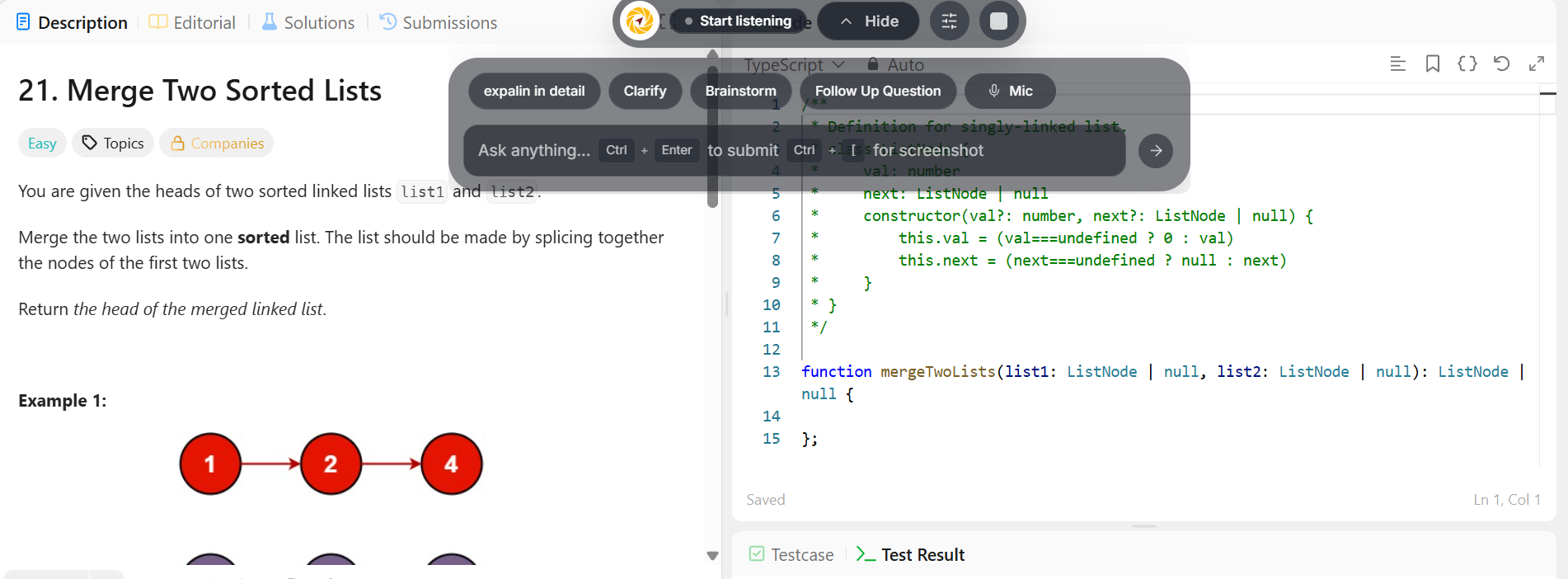
Use Ctrl + [ to attach the visible screen when you need help with code or visual context.
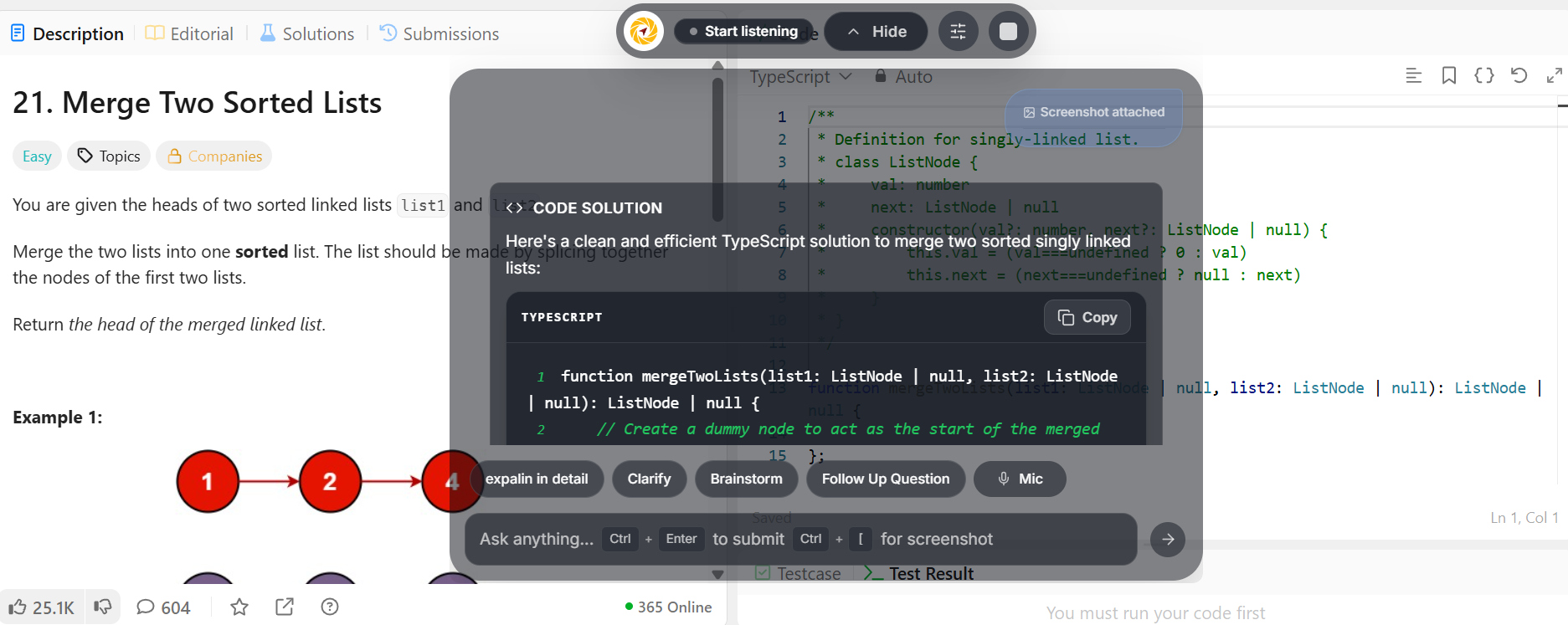
Cluegent reads the screenshot, explains the approach, and gives a practical solution.
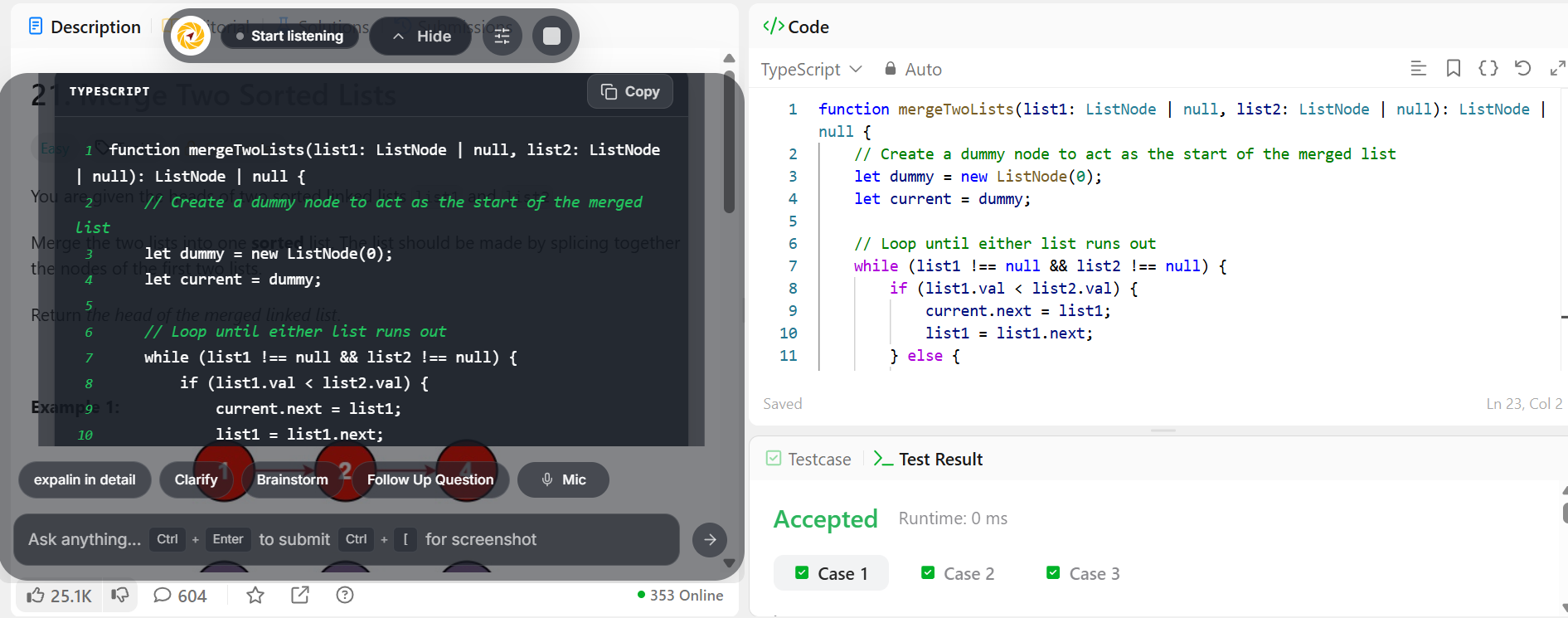
Use the answer in your editor, keep the assistant movable, and continue without breaking focus.
Watch the launch demo, or take a quick look with our Short.
Swipe or scroll sideways to see both videos →
Used for 10,000+ interviews








Candidate Spotlight
Live transcript, resume context, screenshot help, and quick actions stay close while the interview keeps moving.
Try for free
Resume context helped me answer from my own projects instead of giving a generic response.

The quick actions were the part I used most: answer shortly, give example, then explain tradeoffs.

I tuned typed responses to sound structured and calm, then used Cluegent for STAR-style practice.

Resume context helped me answer from my own projects instead of giving a generic response.

Screenshot response made visible code easier to reason through. I asked for edge cases, complexity, and a short explanation.

Listening mode kept the thread of the conversation, then the overlay gave me a focused next answer.

Screenshot response made visible code easier to reason through. I asked for edge cases, complexity, and a short explanation.

Separate listening and typed prompt behavior helped me keep answers short in the call and detailed while practicing.

Adding my resume made the assistant bring up the right project examples when I needed them.

The screen response was tuned for debugging, so I got causes, fixes, and one clean way to explain it.

Separate listening and typed prompt behavior helped me keep answers short in the call and detailed while practicing.
Even when you share your entire screen, Cluegent remains 100% private to you.
Start listening when the call begins. Cluegent keeps the live transcript, then Ctrl + Enter sends the current context for a short answer.
Use Ctrl + [ when a coding problem, error, slide, or on-screen question is visible. Cluegent attaches the screen and answers with visual context.
Type a direct question or use quick action buttons like clarify, brainstorm, and follow-up. The response appears inside the same private overlay.
AI interview tool comparison
Every AI can answer a question. Cluegent is built to answer using your resume, your screen, and the live call context.
Pricing
Start with a 12-minute free trial, then choose hourly packs or prepaid monthly access.
₹999
₹499
One-time purchase · no monthly reset
₹2,499
₹1,499Most Popular
One-time purchase · no monthly reset
₹6,499
₹3,499
One month · paid upfront
200 listening hours per month. Refreshes each monthly anniversary; unused hours do not roll over.
₹10,499
₹7,999Most Popular
₹2,666.33/month equivalent · paid upfront for 3 months
200 listening hours per month. Refreshes each monthly anniversary; unused hours do not roll over.
₹42,499
₹19,499Most Popular
₹1,624.92/month equivalent · paid upfront for 12 months
200 listening hours per month. Refreshes each monthly anniversary; unused hours do not roll over.
12 minutes total Cluegent usage. Try live answers, real-time assistance and screenshot analysis.
Prepaid plans do not automatically charge again. Upgrade in the Cluegent app. Listening is limited to the hours included in your plan.
Add resume context, tune how Cluegent answers each input mode, and keep your best prompts one click away.
Click Start listening and Cluegent begins showing the rolling transcript in your private overlay. Turn listening off whenever you do not need audio context.
Open Settings, go to Customize, and add your resume so Cluegent can keep your background, projects, skills, and experience in context.
Set separate behavior for Listening response, Typed prompt response, and Screenshot response so each mode answers in the style you need.
Add, edit, or remove quick prompt buttons like Give example or Answer shortly, then ask Cluegent using the current transcript, typed prompt, or screenshot context.
Cluegent is a desktop AI interview assistant and meeting copilot for permitted live calls. It listens when you ask it to, keeps rolling context, and gives real-time answers through a private overlay.
No. Cluegent runs as a desktop app. It does not appear as a meeting participant or install a browser extension into the call.
It is designed for desktop calls and screen workflows, including Google Meet, Zoom, Microsoft Teams, Slack Huddles, browser tabs, coding editors, and documents.
Yes. Use screenshot mode to attach a visible coding problem, error, or shared screen. Cluegent can help with the approach, edge cases, tradeoffs, and a clean explanation.
Yes. Open Settings, go to Customize, and add resume context so Cluegent can shape answers around your projects, skills, stack, and experience.
Cluegent includes a private overlay mode designed to stay out of standard screen sharing. Behavior can vary by app, operating system, and permissions, so test your setup before important calls and follow all applicable rules.
Cluegent is built on privacy. Recent meeting history and saved local context stay on your machine, while active transcription, prompt, and screenshot requests are processed only when you use those features.
Yes. Cluegent is free to start, and the download page points you to the current Windows and macOS builds.
Yes. Cluegent also works for permitted live meetings, client calls, product reviews, and technical discussions where you want live context and quick answers.
Try Cluegent on your next permitted live call and keep the answer one shortcut away.